
How to Fix Plastic Skin in AI Photos Without Changing the Face
Use manual masking for precise local control, or a generative skin enhancer to rebuild missing texture. Compare the face and fine details before downloading.
To fix plastic skin in an AI photo while keeping the person recognizably the same, use manual masking for pixel-level control, or a generative skin enhancer when the skin has no usable texture left. Masked highlight adjustments and subtle grain give you control over where edits apply; a generative enhancer can rebuild skin texture while aiming to preserve the face, expression, and composition. Compare before downloading, especially when individual tooth shapes, text, or logos must stay exact.
First, identify what looks artificial
Use this checklist to inspect your image at its intended viewing size and at 100% zoom:
- Plastic skin: large, smooth patches on the forehead or cheeks, with little variation in texture.
- Glossy lighting: bright patches dominate the face and make skin look polished.
- Harsh halos: a pale outline around the hair or jaw draws attention away from the portrait.
- A different problem: distorted eyes, an incorrect expression, or a face you already dislike. Decide whether the underlying image needs replacing before refining its skin.
The examples below illustrate the first two symptoms. Treat them as things to inspect, rather than proof that any particular image was made with AI.
The manual route: Lightroom or Photoshop
Choose this route first if you like the face and want control over where the appearance changes. These steps use tonal and texture adjustments rather than regenerating facial features. Keep the original and work on a copy so you can compare and undo each edit.
1. Mask the shine before changing the whole face
In Lightroom Classic, open Masking and use a Brush or a People selection to target the shiny skin. Check the mask overlay and remove the eyes, lips, hair, and background from the selection where necessary. Lower Highlights gradually; adjust Whites only if the brightest patches still dominate. Keep some light on the face instead of making every area equally dark.
Adobe documents these selective controls in its Lightroom Classic masking guide (accessed October 25, 2026). Our recommendation is to use the smallest correction that improves your particular image; there is no universal slider setting for plastic skin.
2. Adjust existing texture, then try a little grain
Use a small Texture increase only if it brings out useful detail. If edges look harsh, try reducing Clarity locally and compare again. Stop if the skin becomes crunchy or waxier. Finally, try a modest Grain adjustment and judge it at the size you plan to share.
Adobe's Lightroom editing reference explains Texture, Clarity, and the Grain Amount, Size, and Roughness controls (accessed October 25, 2026). Grain adds a texture pattern; it does not recover the person's original pores. If the source contains almost no skin detail, tonal edits and grain may make it less distracting without making it detailed.
3. Use Photoshop for more selective control
Add a Curves adjustment layer and gently darken the glossy patch. Use its layer mask to reveal the correction only where needed; soften the transition and reduce the layer opacity if the edit looks obvious. Keep your original image layer intact. For grain, use Camera Raw's Grain controls on a duplicate or Smart Object, and compare with the untouched original.
Adobe explains the reversible layer workflow in Adjust image color and tone, and grain in Camera Raw effects (both accessed October 25, 2026).
4. Inspect halos separately
If you added sharpening or Clarity, reduce it and check the hair and jaw again. A halo already baked into the source may remain. Our recommendation is to correct a persistent edge locally rather than blur the entire face; stop if the fix damages hair strands or the jaw outline. See Adobe's Texture and Clarity reference for how these controls affect detail and edge contrast (accessed October 25, 2026).
Where a generative skin enhancer fits
A generative skin enhancer is a useful option when the skin has no usable texture left for tonal adjustments to bring out. HumanizePhoto works on an already-generated image to make AI photos look natural, aiming to reduce plastic skin and artificial lighting while preserving the subject and composition. Added texture is newly generated detail rather than recovered original pores, and fine details such as individual tooth shapes can be redrawn.
Here is how that looks in two existing HumanizePhoto samples. We reused the site's before/after files; these are not new processing runs or a comparison against Lightroom. The close-ups use the same crop coordinates within each pair, without extra sharpening, retouching, or exposure changes. The source images are also soft, so the difference includes overall detail changes, not just skin texture. Results vary by image.
Headshot: clearer skin texture, the same recognizable face

Before: original AI headshot.
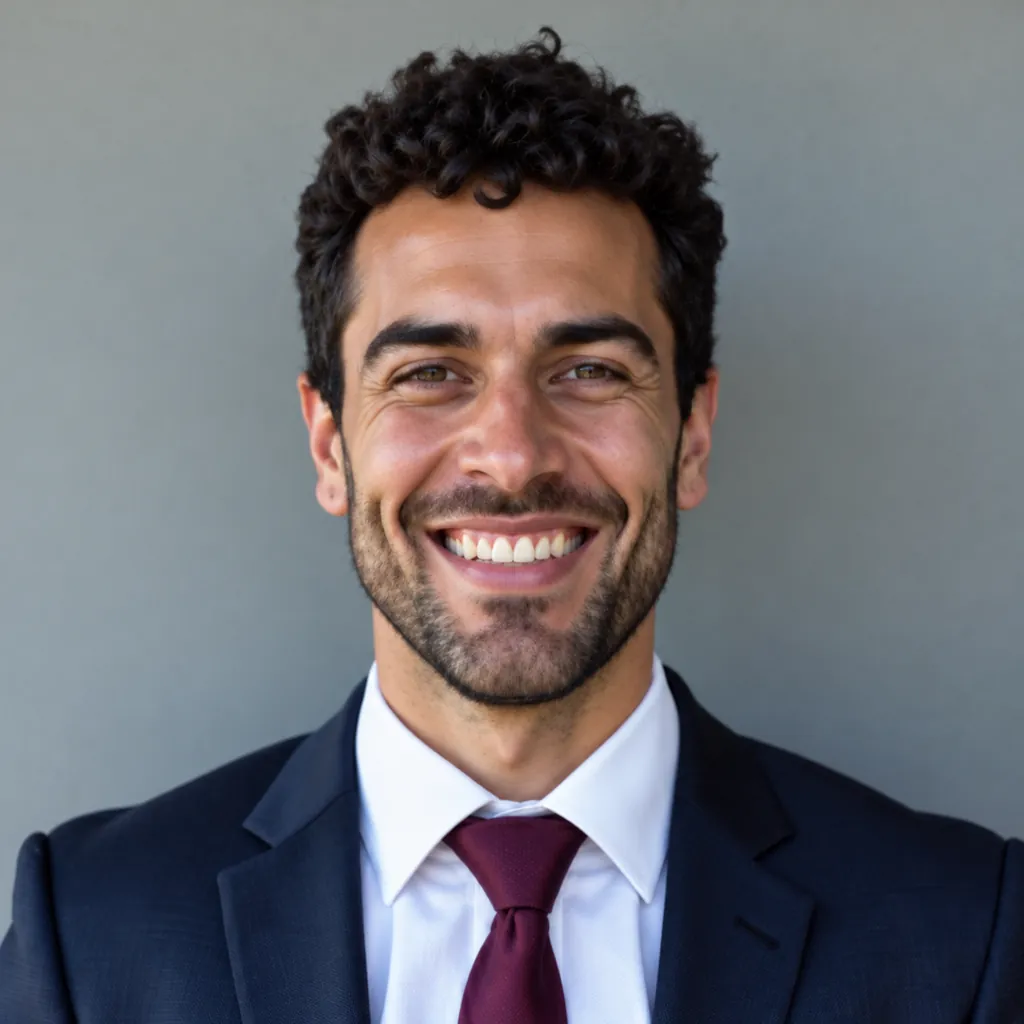
After: more skin texture, with the same recognizable face and expression.

Before: matching facial crop.
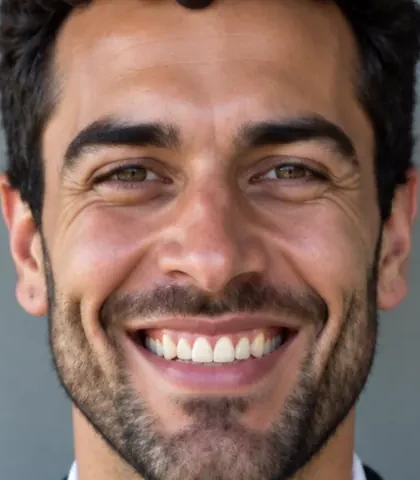
After: matching crop with clearer texture and slightly different tooth shapes.
In this pair, forehead and cheek texture are more visible, shine is less dominant, and beard detail is clearer. The person remains recognizably the same: face shape, eye shape, expression, and pose are preserved, along with the suit, tie, and framing. Fine details such as individual tooth shapes and smile-line detail have been redrawn, so check those areas before downloading if they matter for your use.
Outdoor portrait: more texture and softer shine, with the same expression
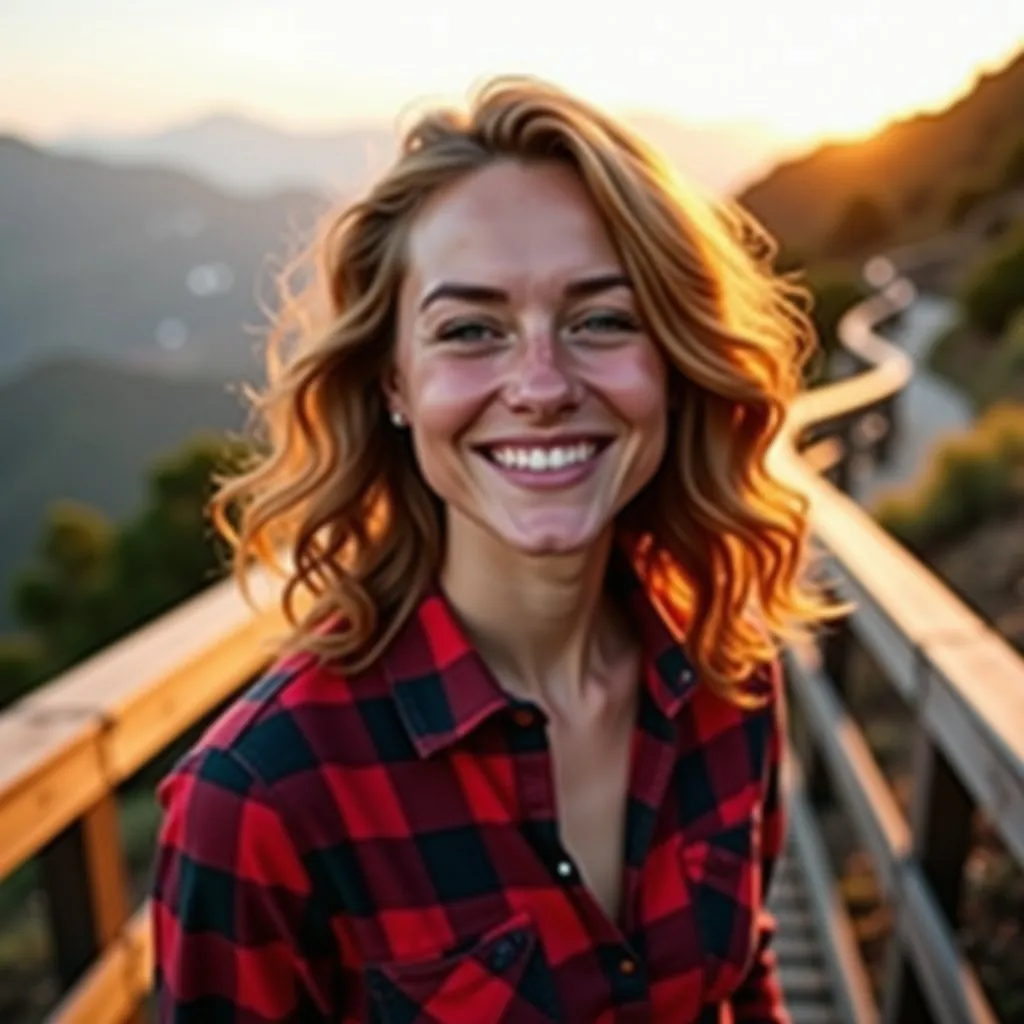
Before: original outdoor portrait.
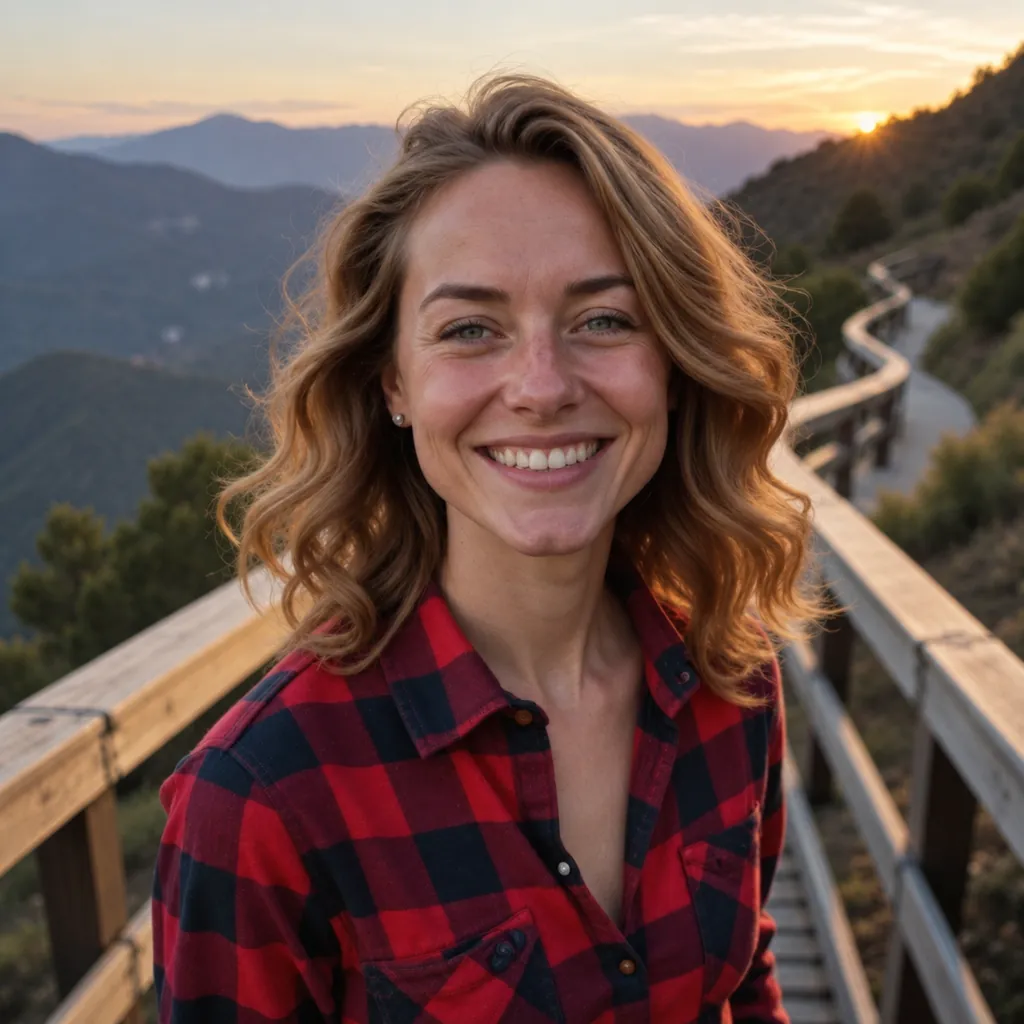
After: clearer skin texture and softer shine; the person and framing remain recognizable.
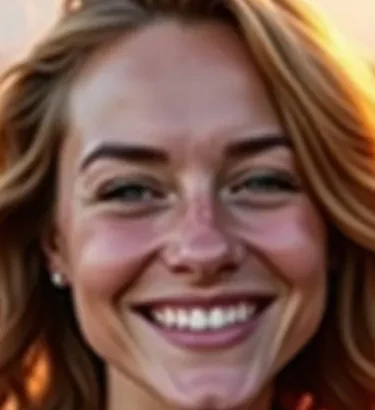
Before: matching facial crop.
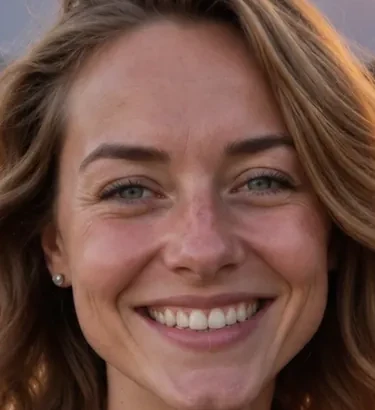
After: matching crop with finer skin texture and slightly different tooth shapes.
The forehead and cheeks show substantially more texture with less pronounced shine. The same recognizable face, eye shape, smile expression, pose, plaid shirt, and framing are retained. Fine tooth shapes and smile-line detail are slightly different; the full view also shows changes in the sky and railing. Check those details before downloading if their exact appearance matters. These examples illustrate visible results and redraw details, not a measured success/failure rate.
How to try HumanizePhoto and judge the result
- Open the HumanizePhoto image tool and upload an AI image you have the right to use. Keep your original file.
- Submit it for processing, then assess the skin texture and lighting in the preview.
- Compare before and after at the same viewing size. Inspect the whole image, then the face at 100% zoom.
- Check the eye shape, nose, mouth corners, teeth, jaw, and expression. Also inspect hair, clothing, text, and background details.
- Before downloading, check that the skin improvement and any redrawn details suit the intended use. Use the manual route when a specific area must stay pixel-exact.
To “remove the AI look” should mean improving visible texture and lighting. HumanizePhoto does not offer metadata or provenance-marker removal, and it does not promise any AI-detector outcome. Continue to disclose AI-generated content wherever the intended platform or context requires it; see our content policy.
What if specific details must stay exact?
If individual tooth shapes in a dental ad, lettering, or a logo must stay pixel-exact, compare those areas carefully before downloading or use the manual route. With manual masks, you can keep protected details outside the adjustments while refining skin tone and shine elsewhere. A recognizable face can still contain slightly redrawn teeth or smile lines, so check the details that matter for the intended use as well as the overall portrait.
For an AI portrait that needs more natural skin texture, try HumanizePhoto on your existing AI photo and compare before you download. Look for improved texture and lighting alongside the recognizable face, expression, and composition you want to keep.