
Humanizer vs Upscaler vs Regenerate: Which Method Should You Use?
A humanizer, an upscaler and regeneration fix different problems in AI photos. See how each handled the same test images, with every run recorded.
Choose the fix by what is actually wrong with the image: a humanizer when you like the subject and composition but the skin and lighting look artificial, an upscaler when the image only needs more pixels, and local inpainting or regeneration when the content itself is wrong. Instead of assuming that rule holds, we ran each original through HumanizePhoto and an upscaler, and regenerated the same prompt with new seeds. Results vary by image.
This article is about choosing a method. For step-by-step manual fixes in Lightroom and Photoshop, see how to fix plastic skin in AI photos.
Published images carry a branded footer outside the photo area. Comparison crops preserve the photo pixels; full-image previews are compressed for display. The recorded output dimensions, file sizes and runtimes refer to the original experiment outputs, before publication branding.
Quick reference: choose a method
Some tools call this kind of texture-and-lighting rework a "skin enhancer". We call it a humanizer.
| Problem | What to use | What it cannot promise |
|---|---|---|
| The subject and composition are right, but skin looks waxy and lighting looks artificial. | Humanizer | Not designed to correct anatomy or replace faces. Fine details such as tooth shapes can be redrawn; a pixel-identical result is not promised. |
| The image looks right but is too small for how you plan to use it. | Upscaler | Results depend on the tool and its mode. Face restoration and generative modes can change facial details or add new detail. |
| The content is wrong: a warped hand, extra fingers, or a face you do not want. | Regenerate / local inpainting | A regenerated image is a new image, so the original composition and face are not carried over. Inpainting changes only a selected area; check the result. |
- Problem
- The subject and composition are right, but skin looks waxy and lighting looks artificial.
- What to use
- Humanizer
- What it cannot promise
- Not designed to correct anatomy or replace faces. Fine details such as tooth shapes can be redrawn; a pixel-identical result is not promised.
- Problem
- The image looks right but is too small for how you plan to use it.
- What to use
- Upscaler
- What it cannot promise
- Results depend on the tool and its mode. Face restoration and generative modes can change facial details or add new detail.
- Problem
- The content is wrong: a warped hand, extra fingers, or a face you do not want.
- What to use
- Regenerate / local inpainting
- What it cannot promise
- A regenerated image is a new image, so the original composition and face are not carried over. Inpainting changes only a selected area; check the result.
Why "upscaler" is not one thing
Tools sold as upscalers behave very differently depending on the mode:
- Real-ESRGAN describes itself as an algorithm for general image restoration, and its face enhancement (GFPGAN) is optional and off by default in its command-line tool (Real-ESRGAN repository).
- Topaz documents that its Face Recovery "will sometimes change expressions slightly or may smooth skin, hair, or small facial details" (Topaz Gigapixel documentation).
- Magnific documents that its Creative mode "adds or infers new detail" (Magnific API documentation).
So the results below describe one upscaler at one setting, not upscalers in general.
How we ran the comparison
- Test images. Both images were generated for this article with FLUX.1 dev on Replicate and show fictional adults. Image A was picked from four candidates because its composition was usable and its skin looked waxy. Image B was picked from six candidates because it shows a clearly visible structural defect. Every candidate, prompt and seed is kept in our test record.
- HumanizePhoto. Two attempts per image, using the same model, prompt and settings as the website, sent through the provider's API rather than the website. The times below therefore leave out uploading and page loading. Both attempts are shown.
- Upscaler. Real-ESRGAN on Replicate at 2×, with face enhancement turned off. One attempt per image.
- Regeneration. The same prompt in FLUX.1 dev with three seeds chosen before the run. All three attempts are shown.
- Timing. "Submission to result" runs from sending the request to receiving the output file. The provider's own runtime is shown separately when it reports one.
- Crops. We show the cheek in Test 1, and the cheek and hand in Test 2. For the humanized and upscaled images, we crop each region at the same relative position and resize it to the same display size. Full-resolution crops and other inspected regions are retained in our internal test archive. A regenerated image is not an edit of the original and has no matching pixels, so we show those as full images.
- Limits. Two images cannot show how these methods behave in general. Read the tests as worked examples.
Test date: Oct 27, 2026
Test 1: waxy skin, good composition
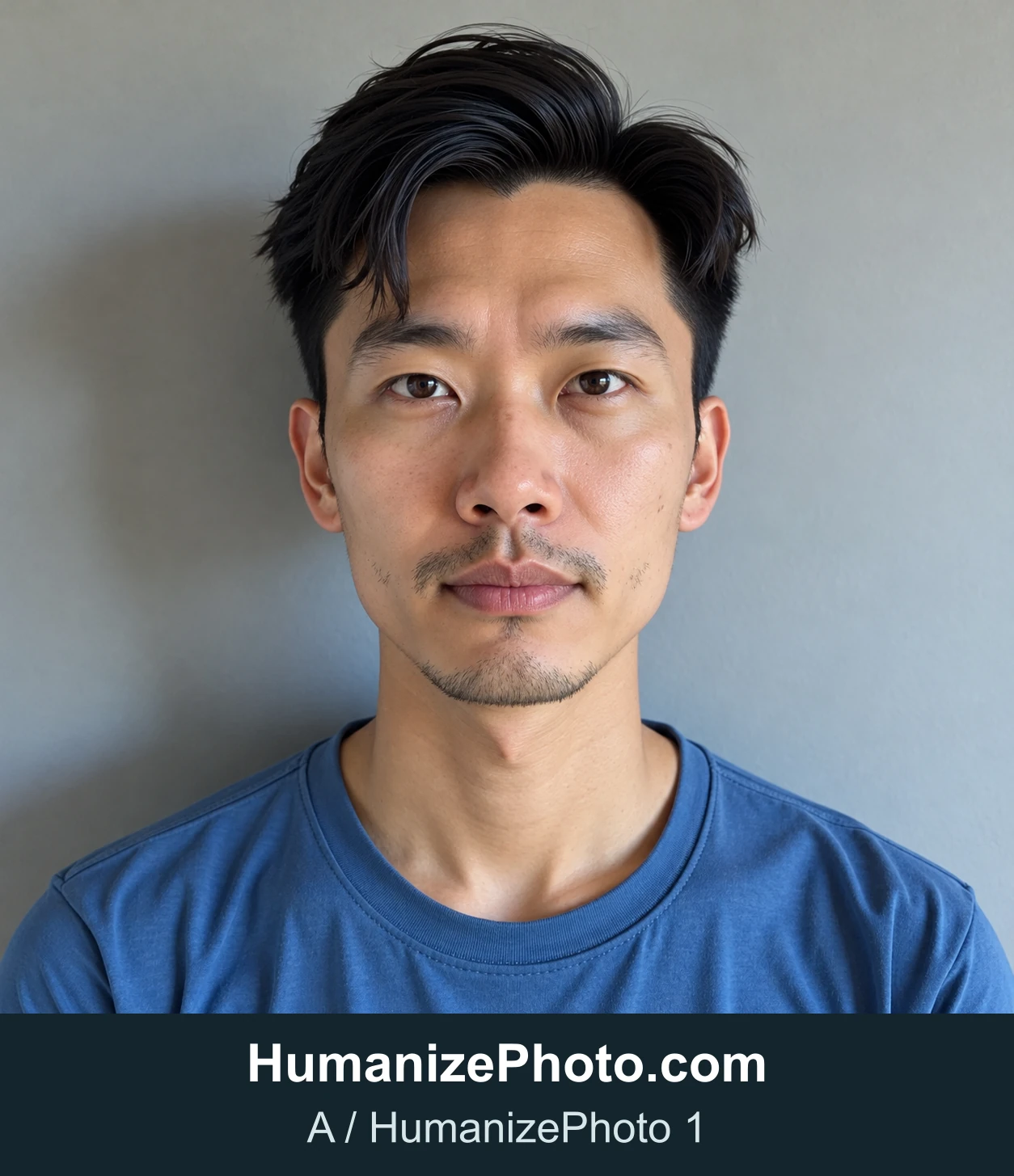
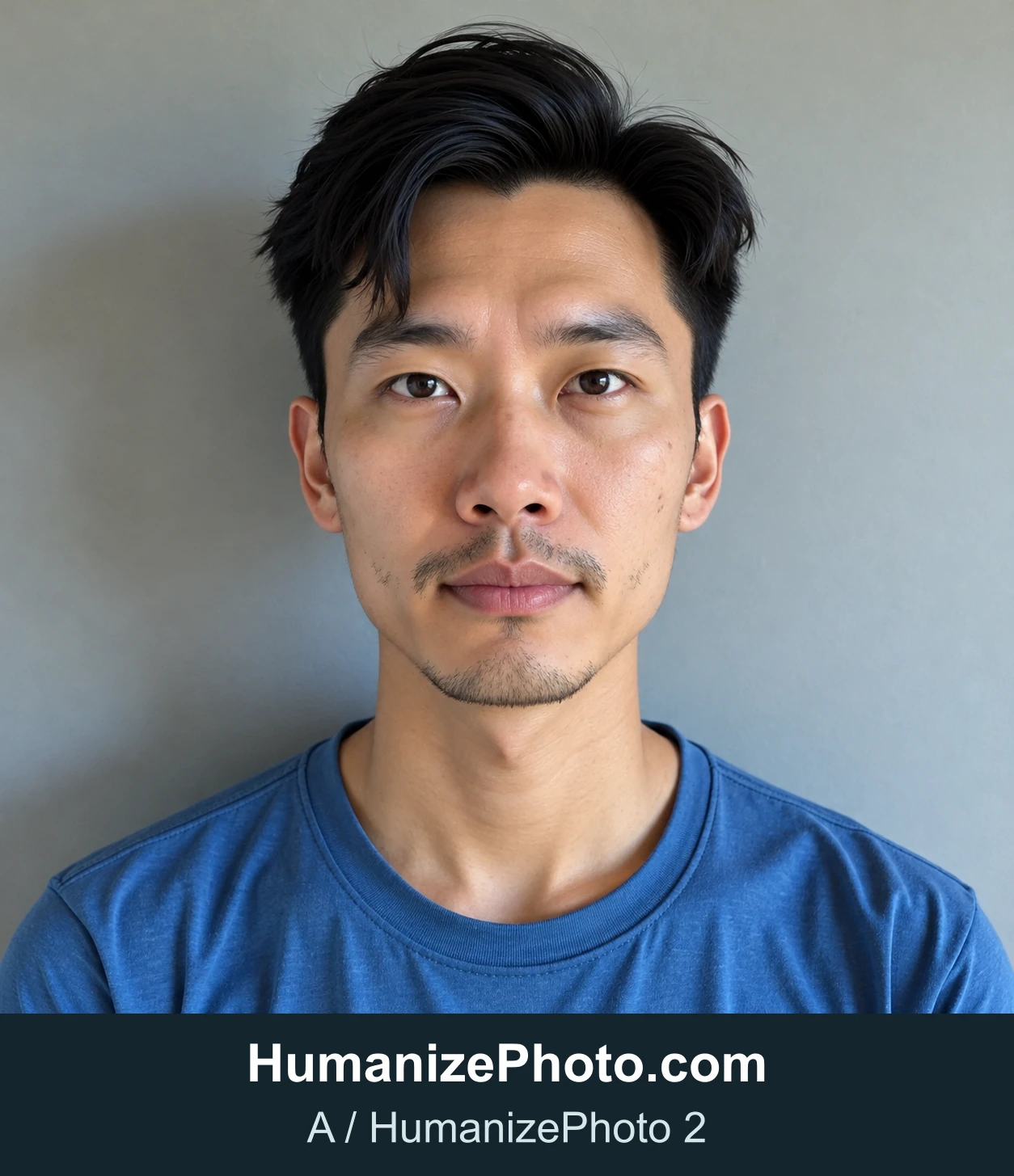
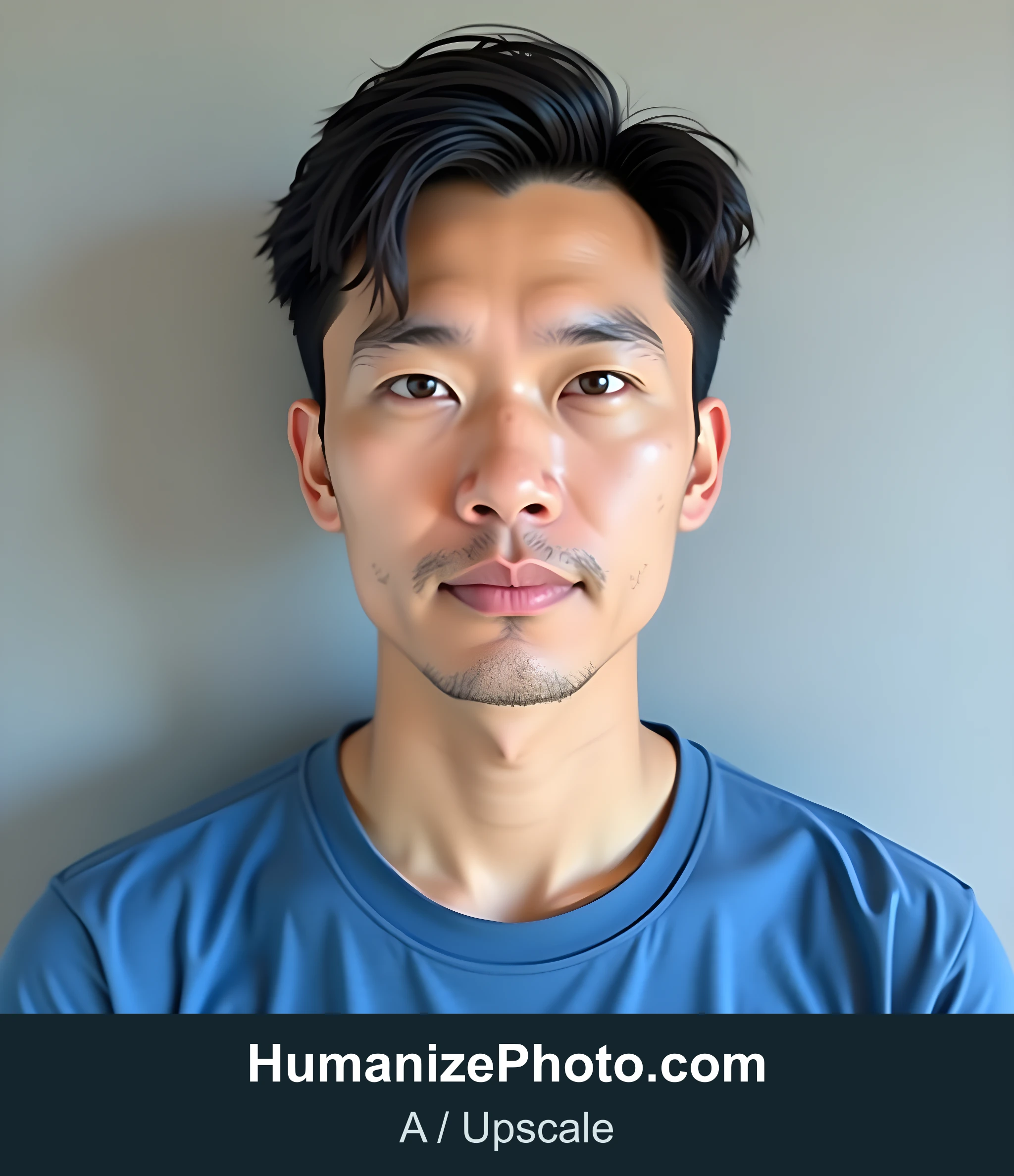
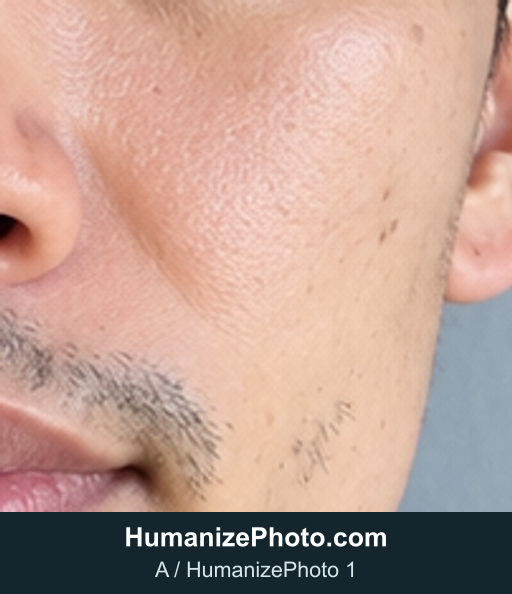
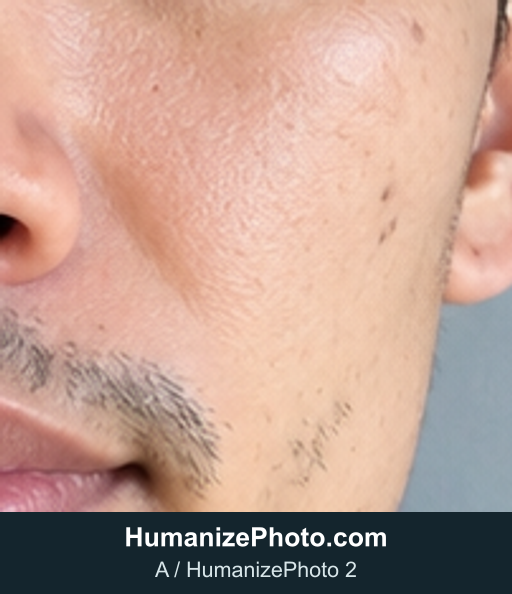
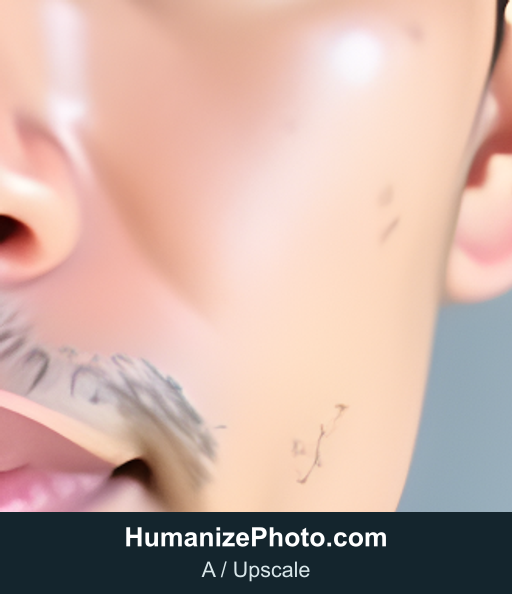
What we looked for: did the skin gain believable texture, did the highlights change, and did the face, expression or framing shift? Did any method add new artifacts?
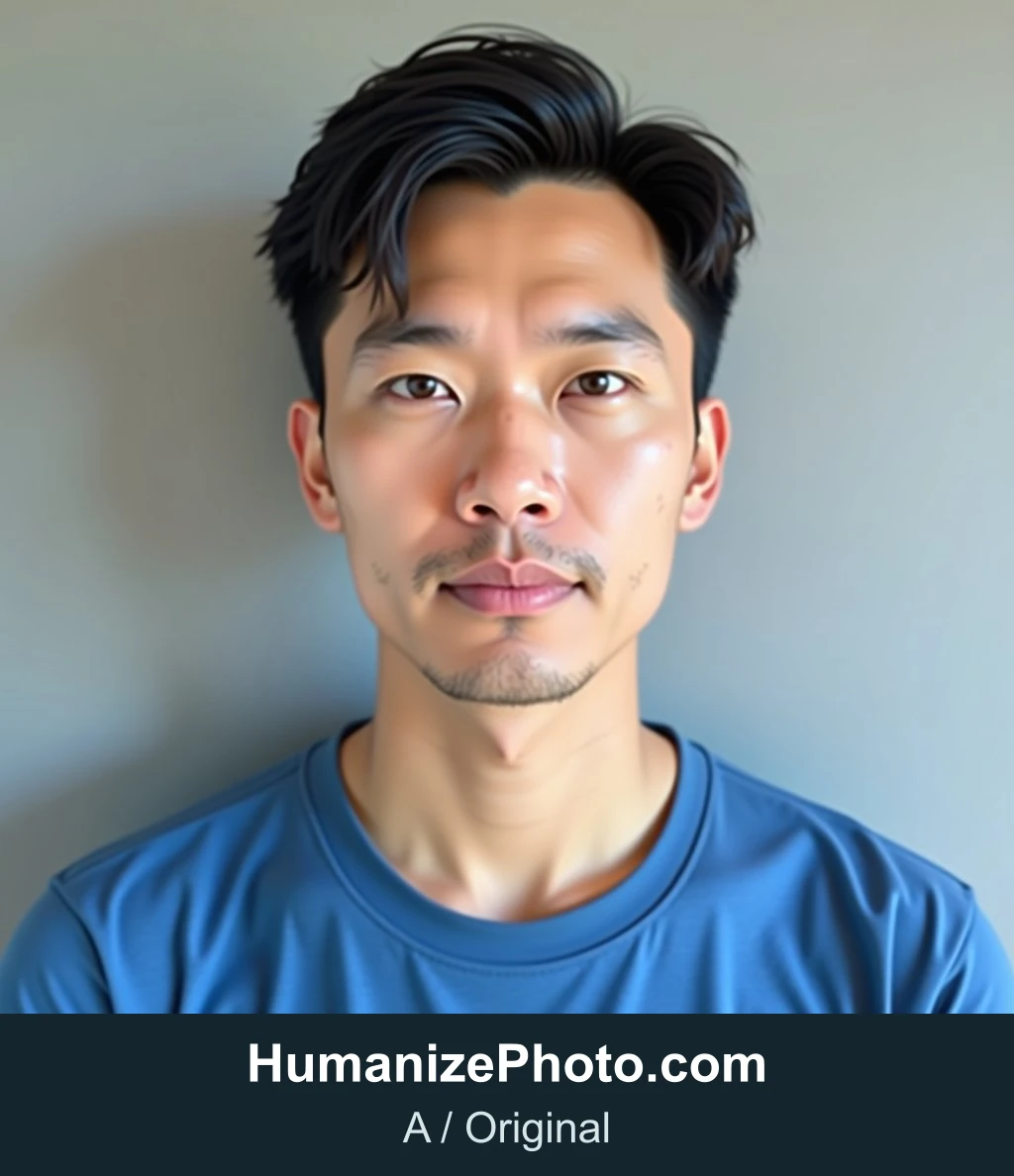
- Original prompt
- One entirely fictional adult aged 35, not a celebrity or any identifiable real person, fully clothed. A photographic-looking AI-generated test image, no text, no collage. Centered shoulders-up portrait facing the camera, short dark hair, hairline and forehead fully visible, neutral expression, both eyes clearly visible, blue cotton shirt, plain gray wall, soft frontal daylight. Coherent facial anatomy, correct composition, head fully inside frame. Deliberately give the forehead and cheeks uniformly smooth plastic wax-like skin, no pores and exaggerated glossy highlights, like an over-retouched portrait. Keep hair and clothing detailed.
- Seed
- 270103
Humanize
Upscale
Regenerate — new images
Cheek
| Attempt | Status | Dimensions | File size | Submission to result | Provider runtime |
|---|---|---|---|---|---|
| Humanize · Attempt 1 | Completed | 1254 × 1254 | 2149.8 KiB | 26.02 s | 20.98 s |
| Humanize · Attempt 2 | Completed | 1254 × 1254 | 2169.0 KiB | 25.62 s | 22.10 s |
| Upscale · Attempt 1 | Completed | 2048 × 2048 | 4489.5 KiB | 17.53 s | 8.57 s |
| Regenerate — new images · Attempt 1 | Completed | 1024 × 1024 | 59.8 KiB | 7.90 s | 3.73 s |
| Regenerate — new images · Attempt 2 | Completed | 1024 × 1024 | 68.1 KiB | 8.25 s | 3.68 s |
| Regenerate — new images · Attempt 3 | Completed | 1024 × 1024 | 67.8 KiB | 7.90 s | 3.66 s |
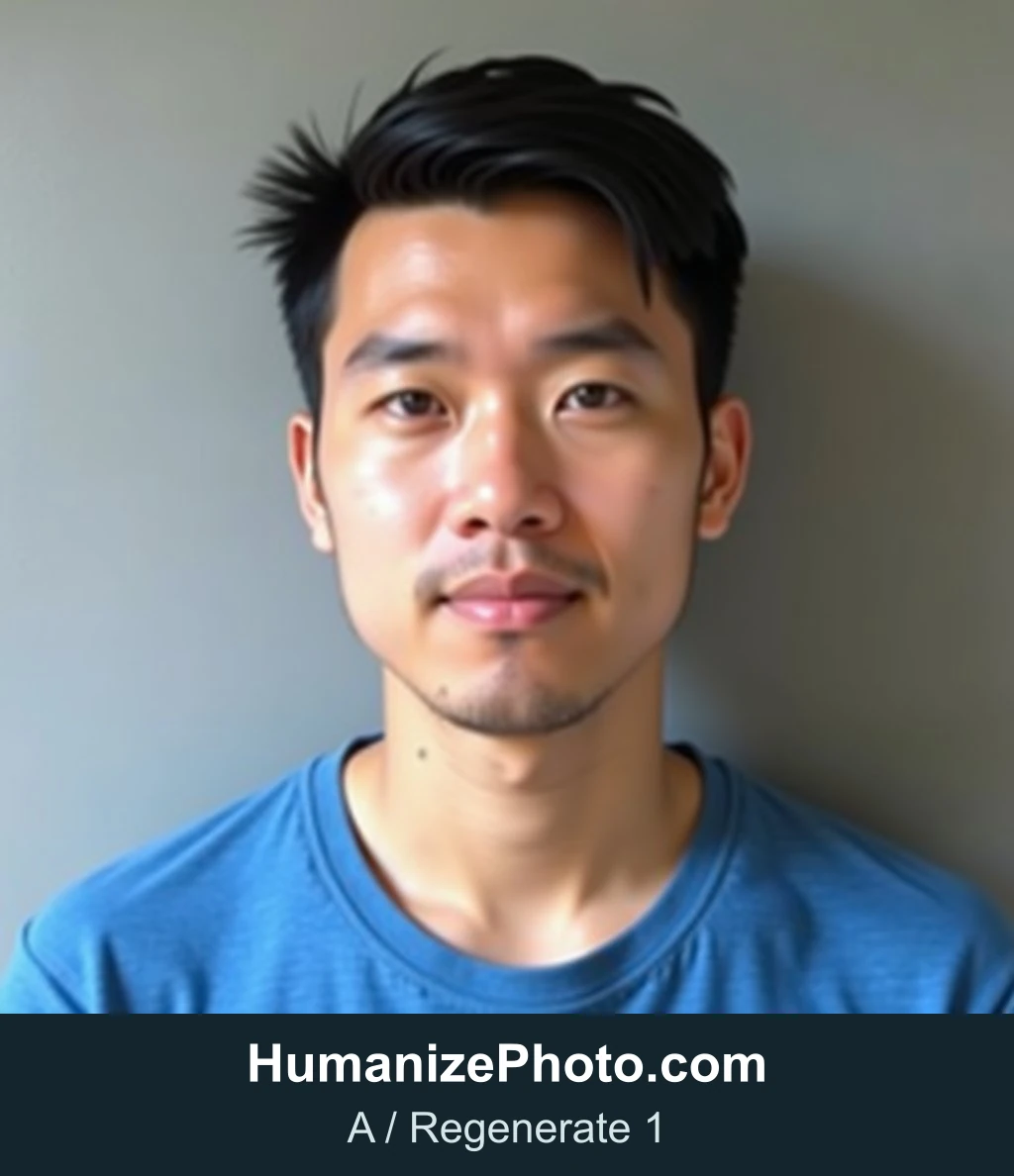
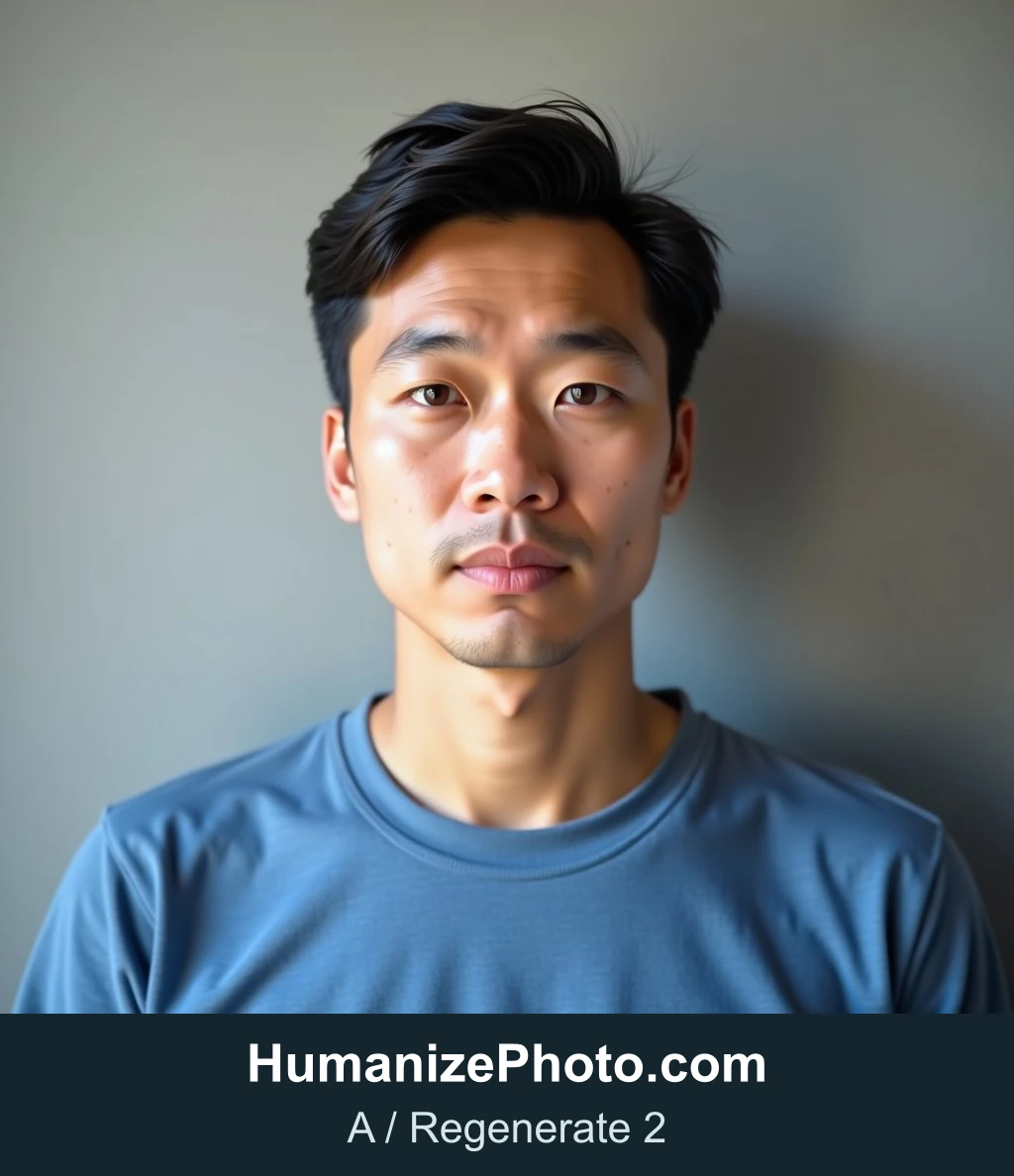
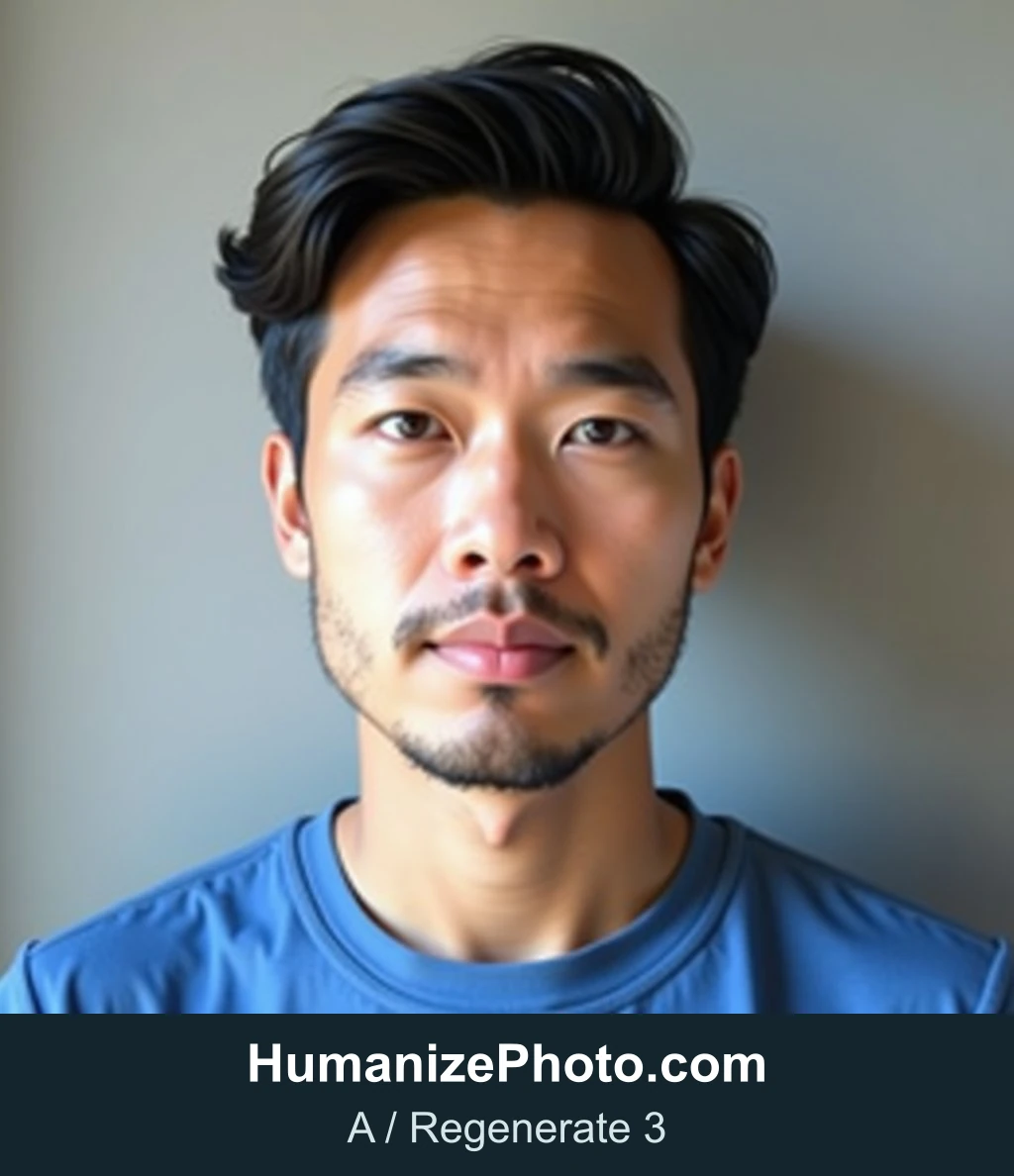
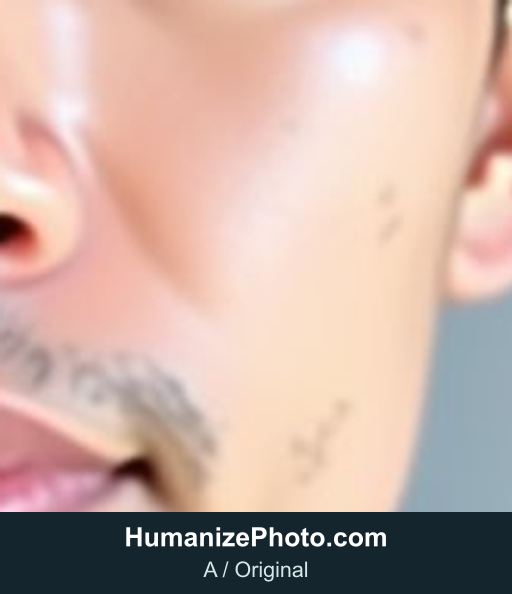
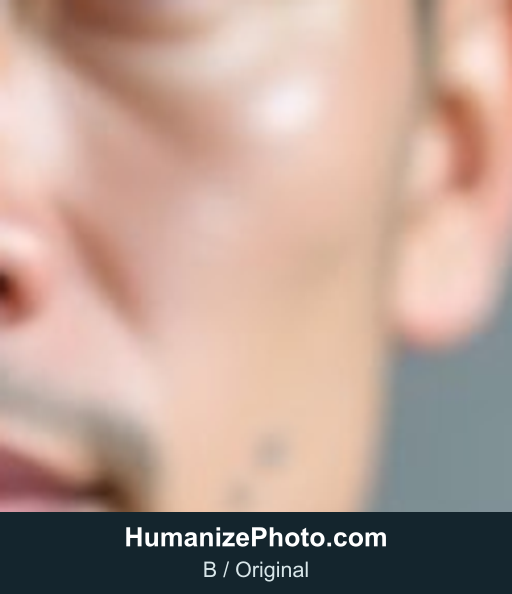
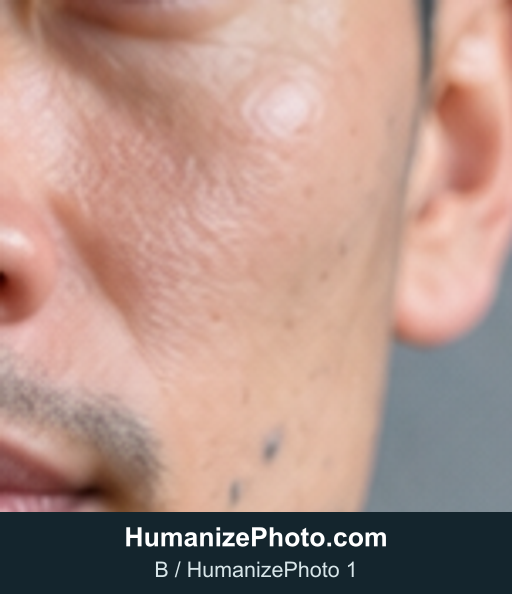
What we saw. In both HumanizePhoto attempts, the forehead and cheeks gained visible pore-like texture and the bright patch on the cheek became less glossy. At full size, the face, expression, hair and framing looked the same as the original. Fine details were redrawn: eyebrow hairs, stubble and a few small marks on the cheek differ from the original, and the overall color is slightly warmer. The two attempts look very similar to each other.
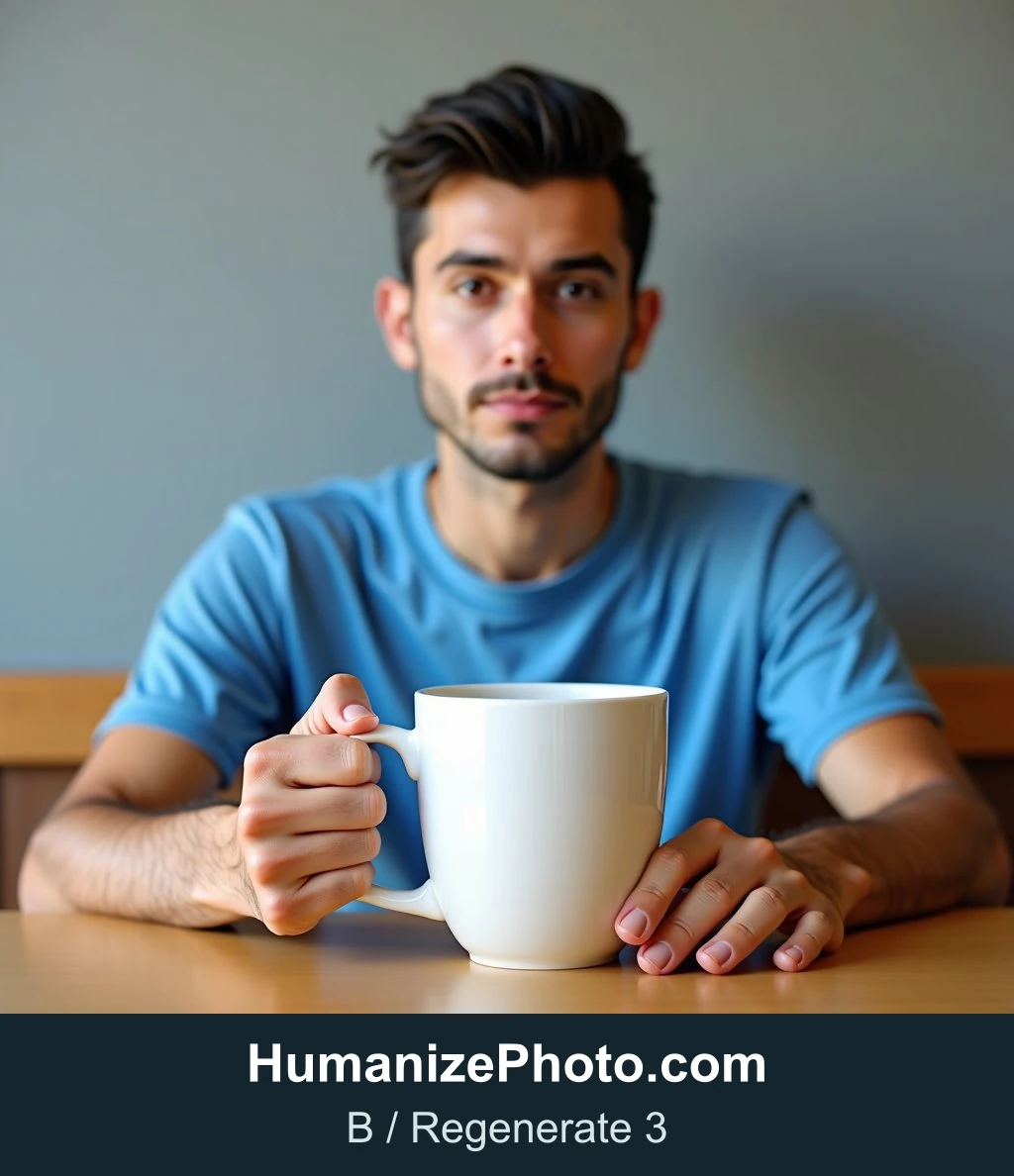
The Real-ESRGAN result is twice the size, with crisper edges around the eyes and lips, but the forehead and cheeks stayed smooth and glossy. The three regenerated images show three different men with different hair and framing; none of them is the original person.
Test 2: a visible structural defect
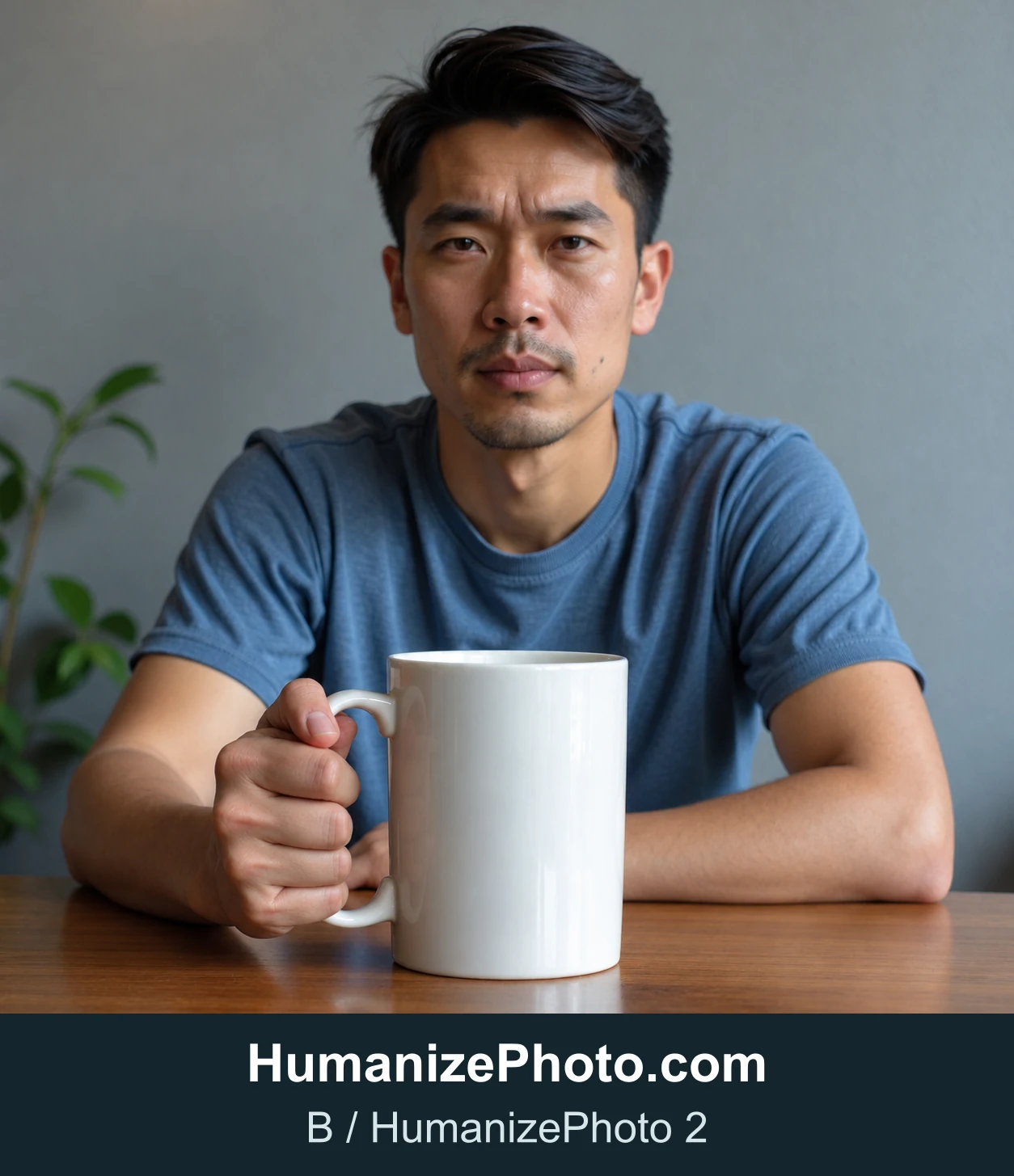
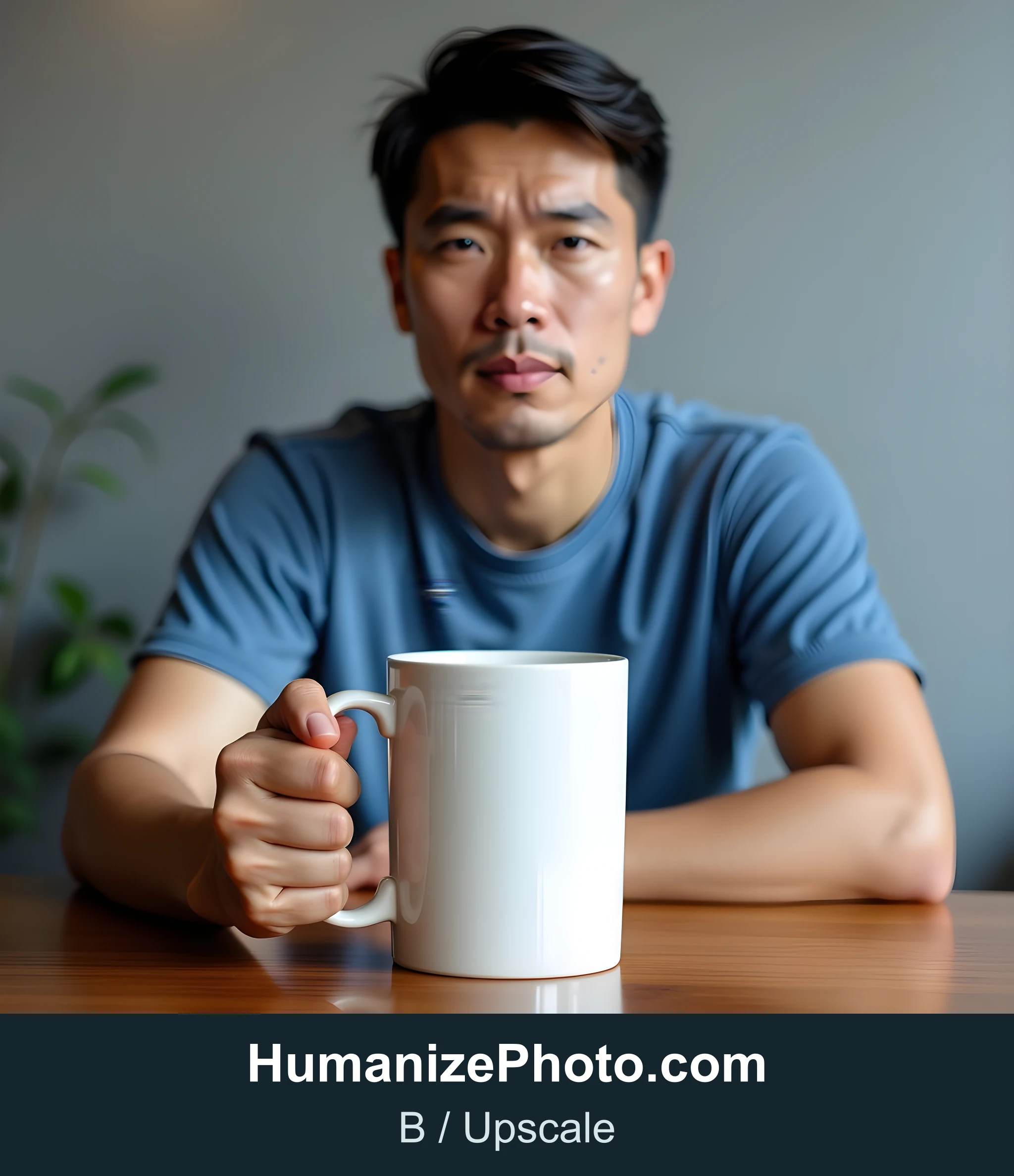
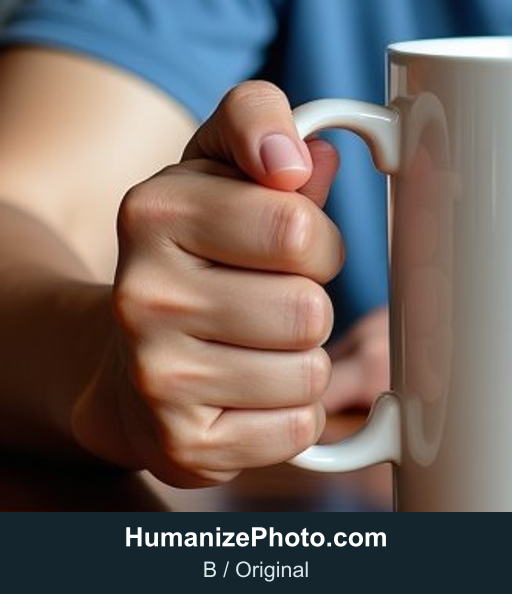
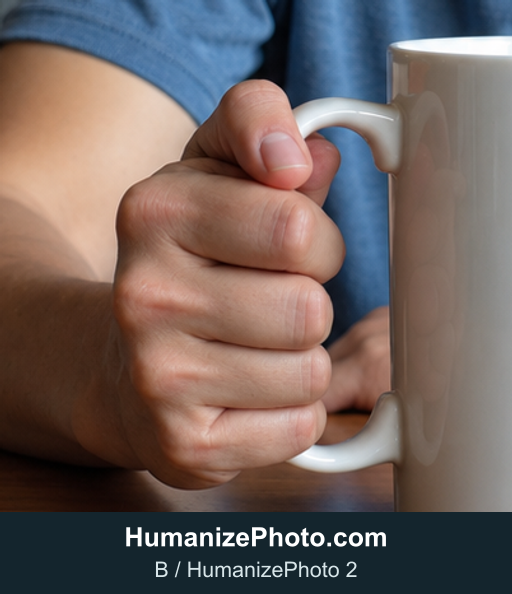
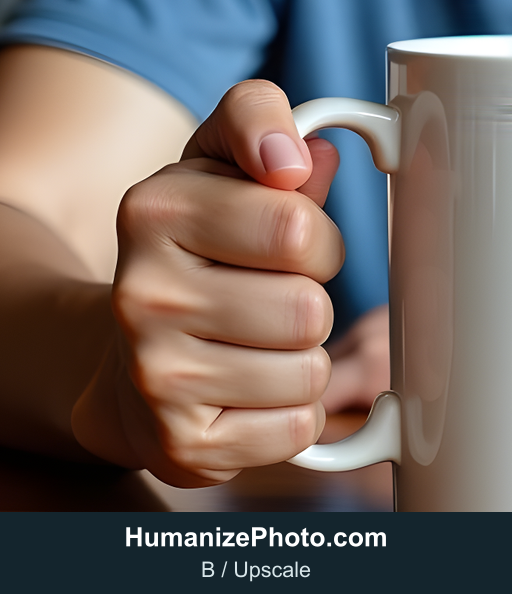
Image B has a structural defect, marked with a box. What we looked for: did any method remove the defect, and what else changed?

- Original prompt
- One entirely fictional adult aged 35, not a celebrity or any identifiable real person, fully clothed. A photographic-looking AI-generated test image, no text, no collage. Waist-up portrait facing the camera at a cafe table, short dark hair, hairline and forehead visible, neutral expression, blue cotton shirt, plain gray wall. The face is centered in the upper half of the square frame. At the lower right, one hand holds a large white ceramic mug close to the chest with fingers fully exposed. Deliberately render a conspicuous AI anatomy error: six visible fingers, two fused fingers and a bent extra thumb gripping the mug handle. Make the malformed hand large and easy to inspect. Keep the face coherent with smooth waxy skin and glossy highlights. Do not hide the hand behind the mug.
- Seed
- 270205
Humanize

Upscale
Regenerate — new images


Cheek
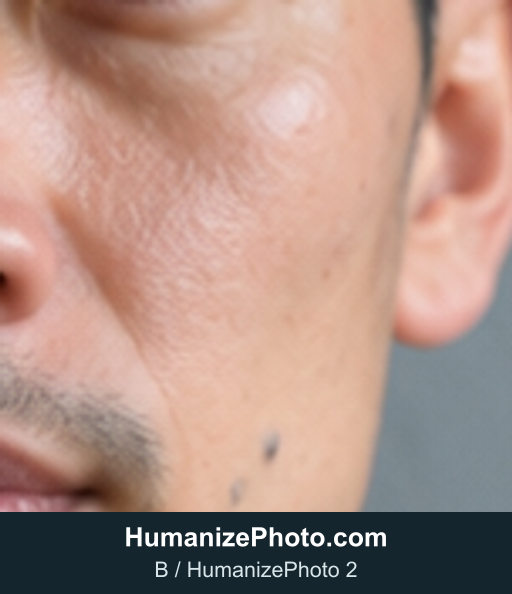
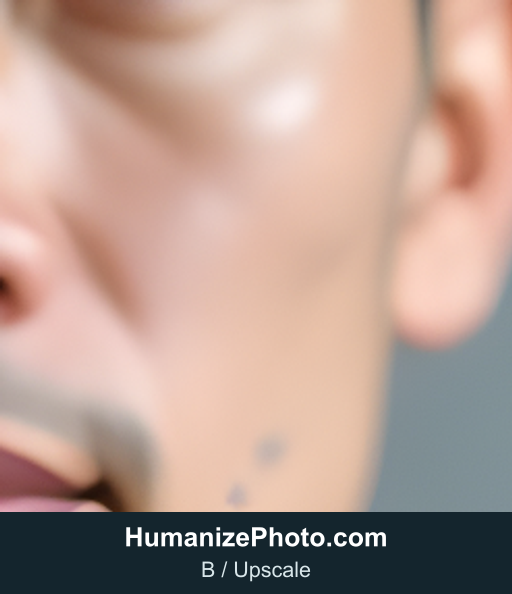
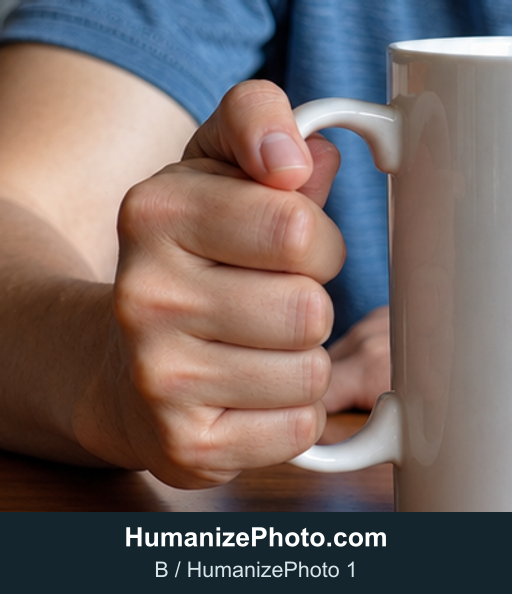
Hand (structural defect)
| Attempt | Status | Dimensions | File size | Submission to result | Provider runtime |
|---|---|---|---|---|---|
| Humanize · Attempt 1 | Completed | 1254 × 1254 | 1848.5 KiB | 25.74 s | 21.61 s |
| Humanize · Attempt 2 | Completed | 1254 × 1254 | 1881.9 KiB | 29.53 s | 23.58 s |
| Upscale · Attempt 1 | Completed | 2048 × 2048 | 4322.4 KiB | 17.21 s | 8.46 s |
| Regenerate — new images · Attempt 1 | Completed | 1024 × 1024 | 69.3 KiB | 8.08 s | 3.63 s |
| Regenerate — new images · Attempt 2 | Completed | 1024 × 1024 | 70.0 KiB | 7.84 s | 3.70 s |
| Regenerate — new images · Attempt 3 | Completed | 1024 × 1024 | 77.8 KiB | 8.14 s | 3.68 s |
What we saw. Neither HumanizePhoto attempt fixed the hand: the fist still closes around the mug handle in the same impossible way, while the face gained skin texture. The upscaled version shows the same hand at twice the size. The three regenerated images show different men; in two of them the hand still wraps through the handle in a similar way, and in one the grip looks plausible. In this test, regenerating did not reliably fix the hand.
If only one area is wrong, local inpainting is another option: in Photoshop's Generative Fill, you select the area and generate a replacement for it alone (Adobe help). We did not test inpainting here.
Processing failures and paid retries
When not to use a humanizer
- The structure is wrong. HumanizePhoto is not designed to correct anatomy or incorrect content. Use local inpainting for a defect in one area, or regenerate for a larger problem, and check the result.
- Details must stay exact. HumanizePhoto redraws visible details rather than simply adding grain, and a fixed output resolution or pixel-for-pixel match is not guaranteed. If text, logos or tooth shapes must stay exactly as they are, use a masked edit that leaves them untouched, such as masking in Lightroom Classic (Adobe help).
- You only need more pixels. If the image already looks right, use an upscaler, then check faces and edges at 100% zoom.
Choose the next step
Structure
If anatomy or content is wrong, use local inpainting or regenerate, then check again.
Texture and lighting
If the content is right but skin and lighting look artificial, try a humanizer and compare at 100% zoom.
Output size
If you need a larger file, upscale last, then check faces and edges again.
This order avoids polishing an image you are going to replace. It is our suggestion, not a measured result.
Provenance and disclosure
HumanizePhoto does not promise that your image will pass any AI detector. It edits visible texture and lighting; it does not offer metadata editing, removal of provenance marks such as C2PA or SynthID, or detector evasion. The model may include its own provenance information in the output. Content Credentials, defined by C2PA, record where content came from (C2PA FAQ). Continue to disclose AI-generated content wherever platform rules, advertising laws, or editorial guidelines require it. Read the content policy.
Frequently asked questions
Is a humanizer the same as an upscaler?
No. A humanizer reworks visible texture and lighting; an upscaler increases pixel dimensions. Some upscalers also restore faces or add new detail, so check which mode you are using. The tests above show what each did on our two images.
Can a new seed or local inpainting repair structure?
Sometimes, but neither is guaranteed. A new seed produces a new image rather than an edit of yours; Test 2 shows what three seeds did here. Inpainting replaces only the area you select. Check the result either way.
What if individual details must stay exact?
Use a masked edit that leaves those areas untouched. A humanizer can redraw fine details such as tooth shapes, and it does not promise a pixel-identical result.
What happens when processing fails?
Once a processing failure, timeout or provider safety rejection is confirmed, the credits deducted for that task are automatically returned. A completed result you do not want is charged like any other task.
Pricing note and sources
HumanizePhoto costs 10 credits per standard photo. On one-time packs that works out to $0.238– $0.33 per photo if every credit in the pack is used; subscriptions are listed on the pricing page. Prices checked Oct 28, 2026.
Sources (all accessed October 27, 2026):
- Real-ESRGAN repository: general image restoration; optional GFPGAN face enhancement.
- Real-ESRGAN on Replicate and Replicate pricing: face enhancement option; public models billed by processing time.
- FLUX.1 dev on Replicate: priced per output image.
- Topaz Gigapixel Face Recovery.
- Magnific Creative upscaler.
- Photoshop Generative Fill.
- Lightroom Classic masking.
- C2PA FAQ.